English Русский · Support / Поддержка · Privacy / Конфиденциальность
tono — User Guide
A pocket synth, sampler and loop tape for iPhone and iPad. Everything works offline.
- Getting started
- Synth
- Effects, envelope, LFO
- Sampler
- Drums
- Sequencer & arpeggiator
- Loop tape
- Mixer & export
- Saving
- Troubleshooting
Getting started
Open tono and play — the keys at the bottom make sound right away. Rotate your iPhone to landscape (on iPad, any orientation works). Use headphones or speakers; the sound plays even when the silent switch is on.
tono has four modes, listed on the left: Synth, Drum, Tape and Mixer. Each mode has its own set of knobs and buttons, but the keyboard, the tape controls and the sequencer are always at the bottom.
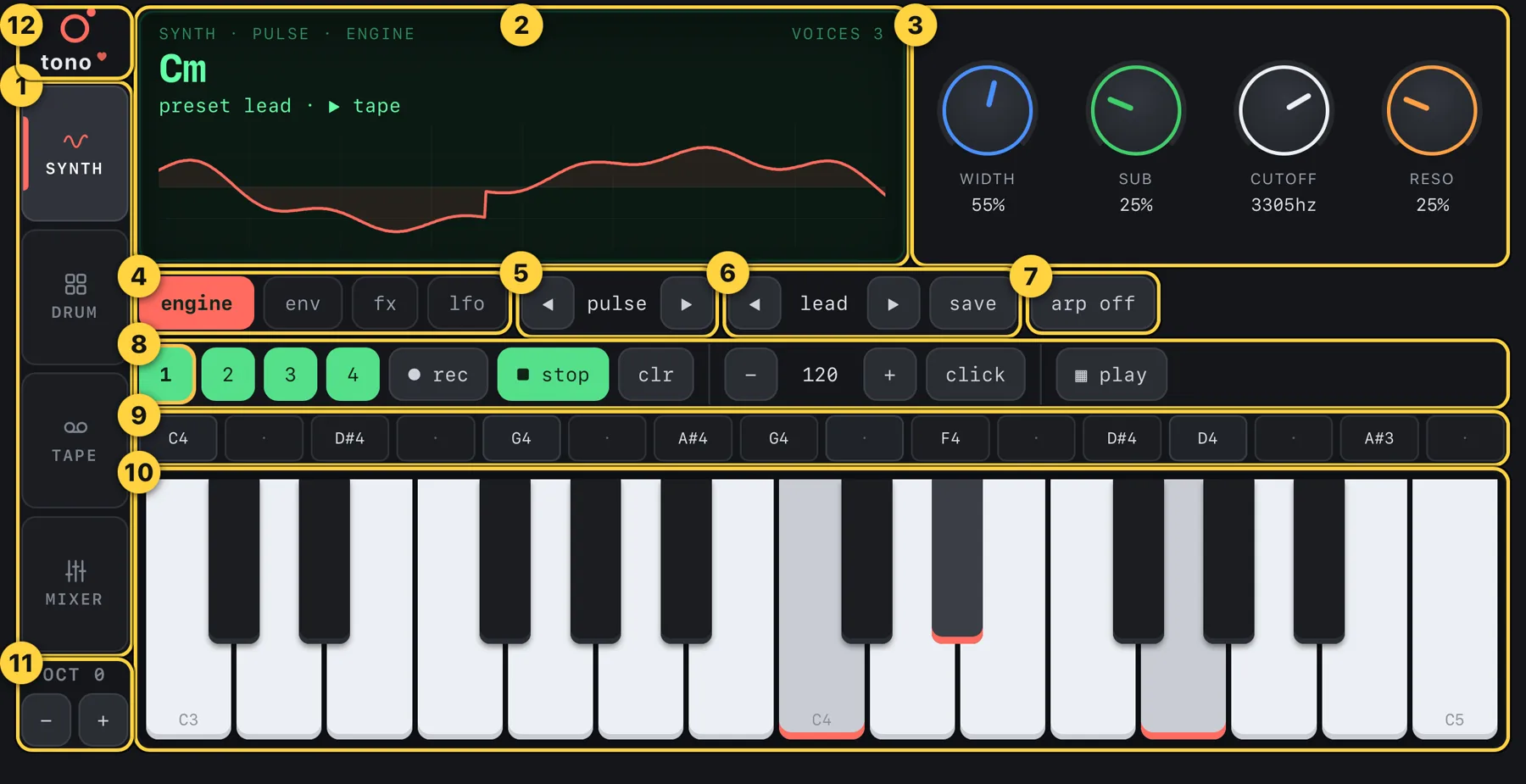
- Modes — Synth, Drum, Tape, Mixer.
- Screen — the played note, the current state and a live waveform. In Tape and Mixer it shows the four tracks.
- Four knobs — put your finger on a knob and drag up or down. The value appears under the knob and on the screen. What the knobs do depends on the mode and on the page chosen in ④.
- Pages — engine, env (envelope), fx (effects), lfo.
- Engine — the sound generator. Use ◀ ▶ to switch.
- Preset — ready-made sounds. ◀ ▶ switches, save stores your own.
- Arpeggiator — tap to cycle off / up / down / updown / random.
- Tape & tempo — tracks 1–4, record, play, clear, tempo, metronome, sequencer.
- Sequencer — 16 steps.
- Keyboard — two octaves (C3 to C5). Slide your finger across the keys for a glissando.
- Octave — shifts the keyboard up or down by two octaves at most.
- tono logo — tap it to see the app version and links to support and privacy.
If a row of buttons does not fit on a small screen, its edge fades out — swipe the row sideways to reach the rest.
Synth
Pick one of nine engines with the ◀ ▶ arrows (⑤). Each engine has its own four knobs on the engine page:
- digital — shape, cutoff, reso, spread: a classic filtered oscillator.
- fm — ratio, index, cutoff, spread: bell, electric-piano and metallic tones.
- pulse — width, sub, cutoff, reso: fat leads and basses.
- string — damp, decay, cutoff, bright: plucked strings.
- cluster — mix, spread, cutoff, bright: organ-like stacks of voices.
- phase — amount, color, cutoff, spread: glassy, evolving tones.
- voltage — spread, sub, cutoff, reso: analog-style saws.
- dna — morph, ratio, cutoff, spread: ring-modulated, strange timbres.
- sampler — plays your own recordings, see Sampler.
The preset (⑥) sets an engine and all knobs at once: keys, ep, lead, pluck, organ, bell, saw, ring, sampler. Change any knob afterwards — the preset is only a starting point. Press save to name and keep your version; your saved sounds appear after the built-in ones.
You can hold several keys at once — the number of sounding voices is shown in the top-right of the screen.
Effects, envelope and LFO
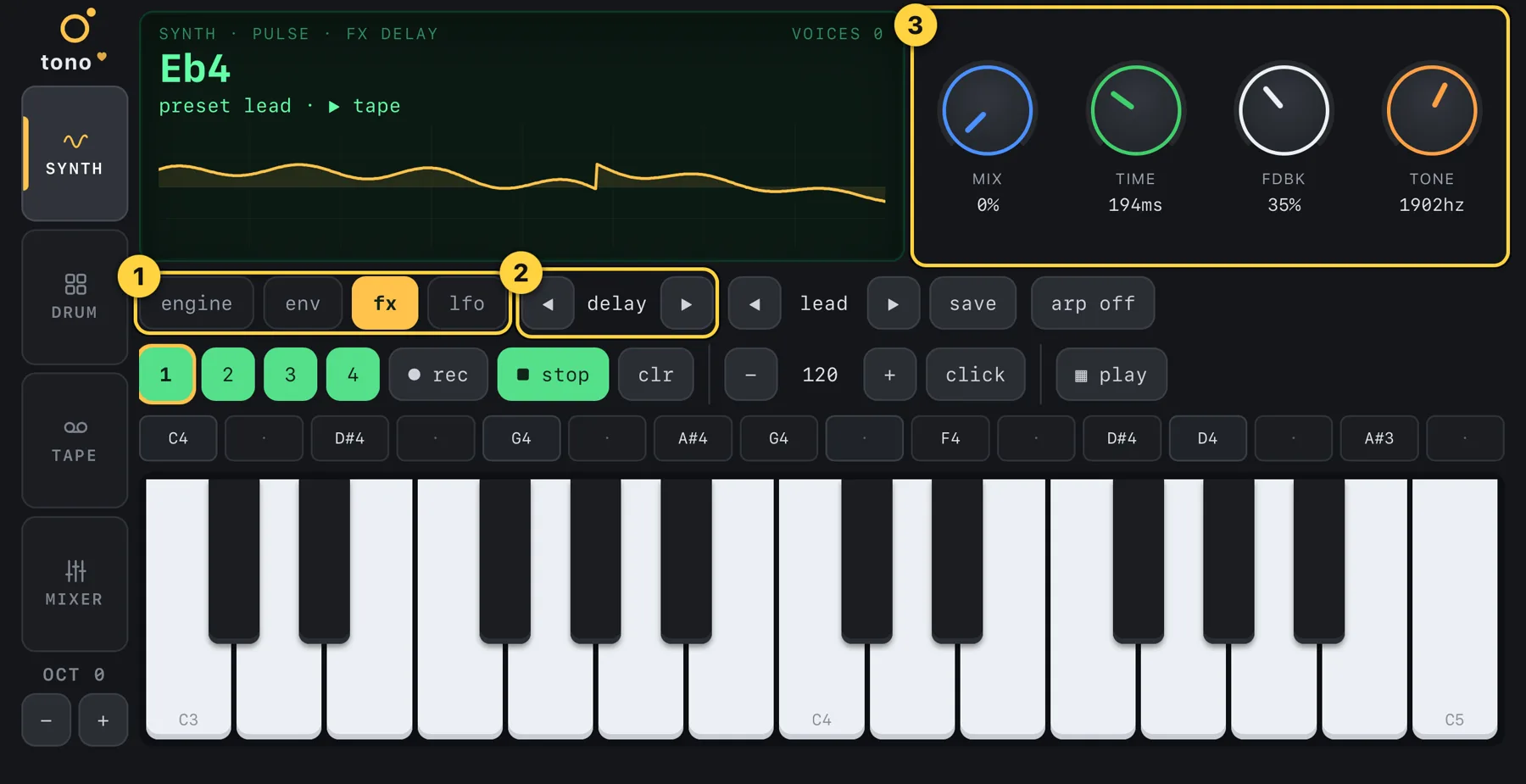
- Pages — switch between engine, env, fx and lfo. The screen and the accent colour change with the page.
- Effect — on the fx page choose one of six: delay, reverb, drive, crush (bit crusher), chorus, phone (telephone).
- Knobs — every effect has mix first. With mix at 0% the effect is off; turn it up to hear it.
Envelope (env)
Shapes how a note starts and ends: attack — fade-in time, decay — how fast it drops to the sustain level, sustain — level while the key is held, release — fade-out after you lift your finger. Short attack and decay with low sustain feel plucked; long attack and release feel like pads.
LFO
A slow wave that moves something over time. rate — speed, depth — amount, dest — what it moves: off, vibrato (pitch), tremolo (volume), wah (filter) or pan (left-right). shape selects the wave. Depth at zero means no LFO.
Sampler
Record any sound and play it on the keyboard. Switch the engine to sampler — a row of sample buttons appears (swipe the row if you do not see them all).
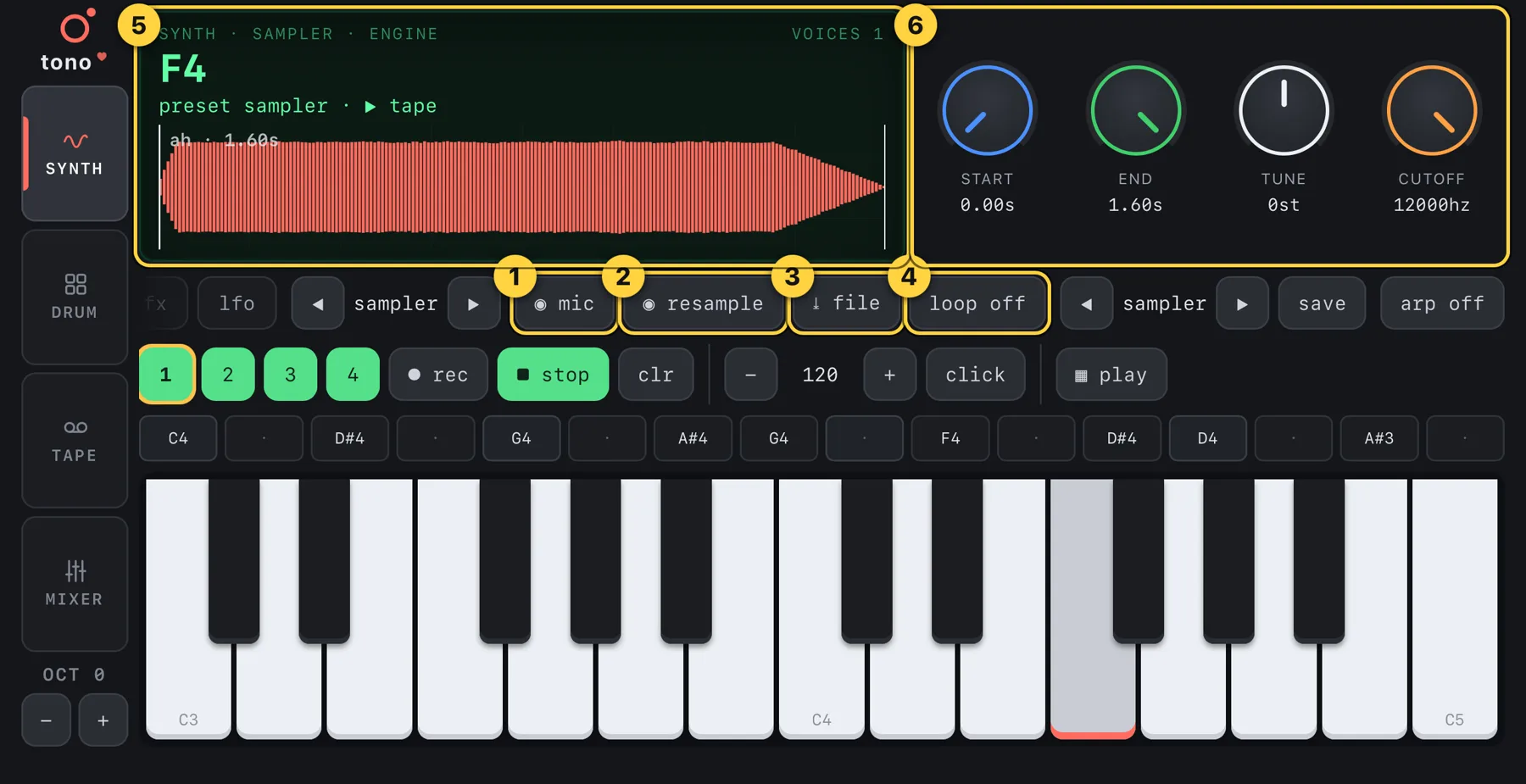
- ◉ mic — tap to start recording from the microphone, tap again to stop (up to 20 seconds). Silence at the ends is trimmed and the level is normalised automatically. The first time, iOS asks for permission to use the microphone.
- ◉ resample — records everything that is playing inside tono (instrument and tape) into the sampler. Tap to start, tap to stop.
- ↓ file — loads an audio file (WAV, MP3 or M4A) from the Files app.
- loop — repeats the sample while a key is held. Good for sustained sounds.
- Waveform — the current sample with its start and end markers.
- Knobs — start and end trim the sample, tune shifts the pitch by up to ±12 semitones, cutoff is a low-pass filter.
The note C4 plays the sample at its original pitch; other keys play it higher or lower. Envelope, effects and arpeggiator work with samples just like with any other engine.
Drums
Choose Drum on the left. The keyboard turns into 13 drum pads, labelled on the keys: kick, snar, hh c / hh o (closed / open hi-hat), clap, tm l / tm h (low / high tom), rim, cowb, cymb, clav, shkr, perc. The pattern repeats after the 13th key.
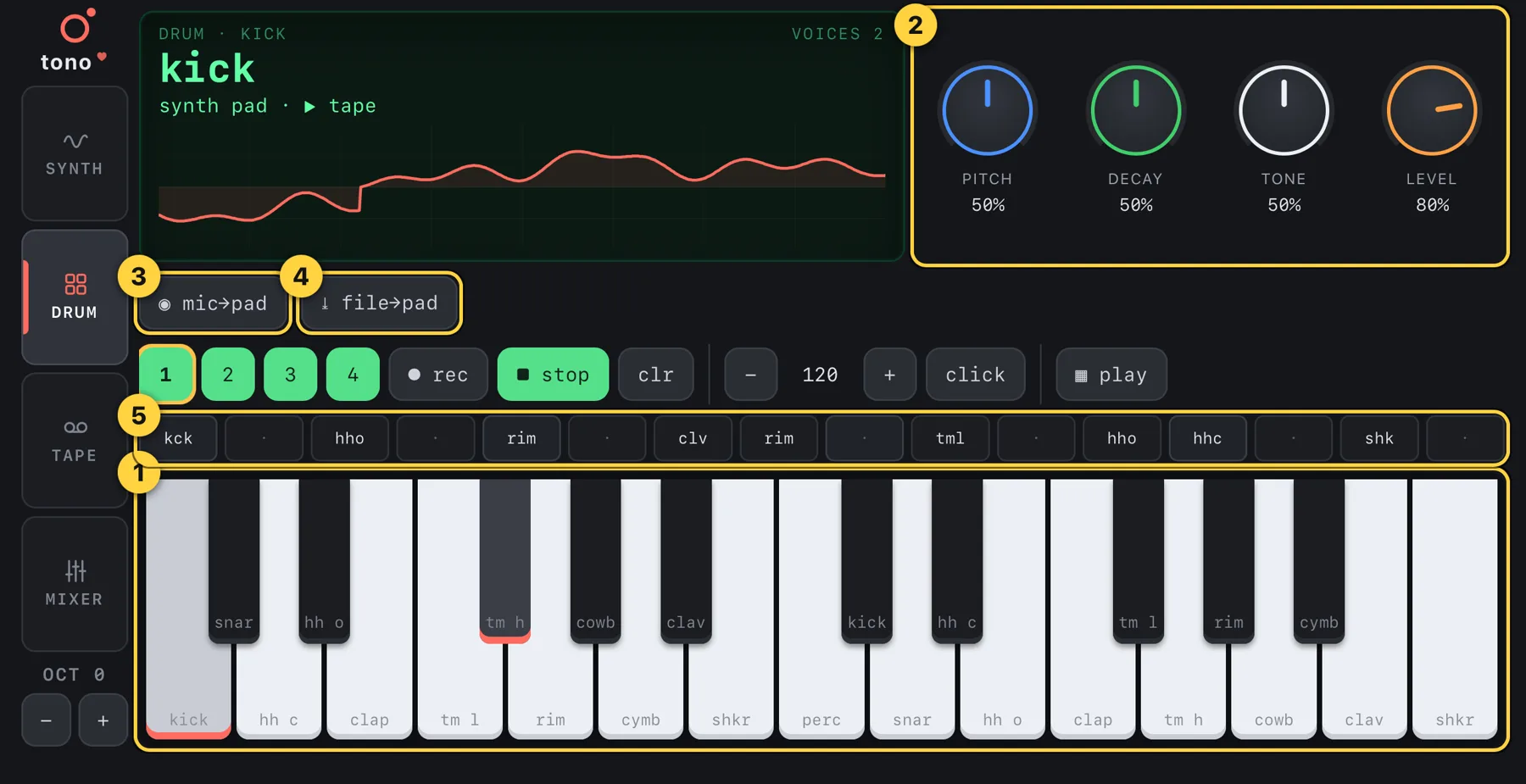
- Pads — tap a key to play and to select that pad. Its name appears on the screen.
- Knobs — pitch, decay, tone, level of the selected pad. Each pad remembers its own settings.
- ◉ mic→pad — records your own sound from the microphone into the selected pad (up to 10 seconds). Tap to start, tap to stop.
- ↓ file→pad — puts an audio file into the selected pad.
- Sequencer — in Drum mode the steps hold pads (kck, snr, hhc…), see below.
A pad with your own sound shows a ✕ synth button — tap it to go back to the built-in drum sound.
Sequencer and arpeggiator
The 16-step sequencer plays a pattern over and over. It works in every mode: with notes in Synth, with pads in Drum.
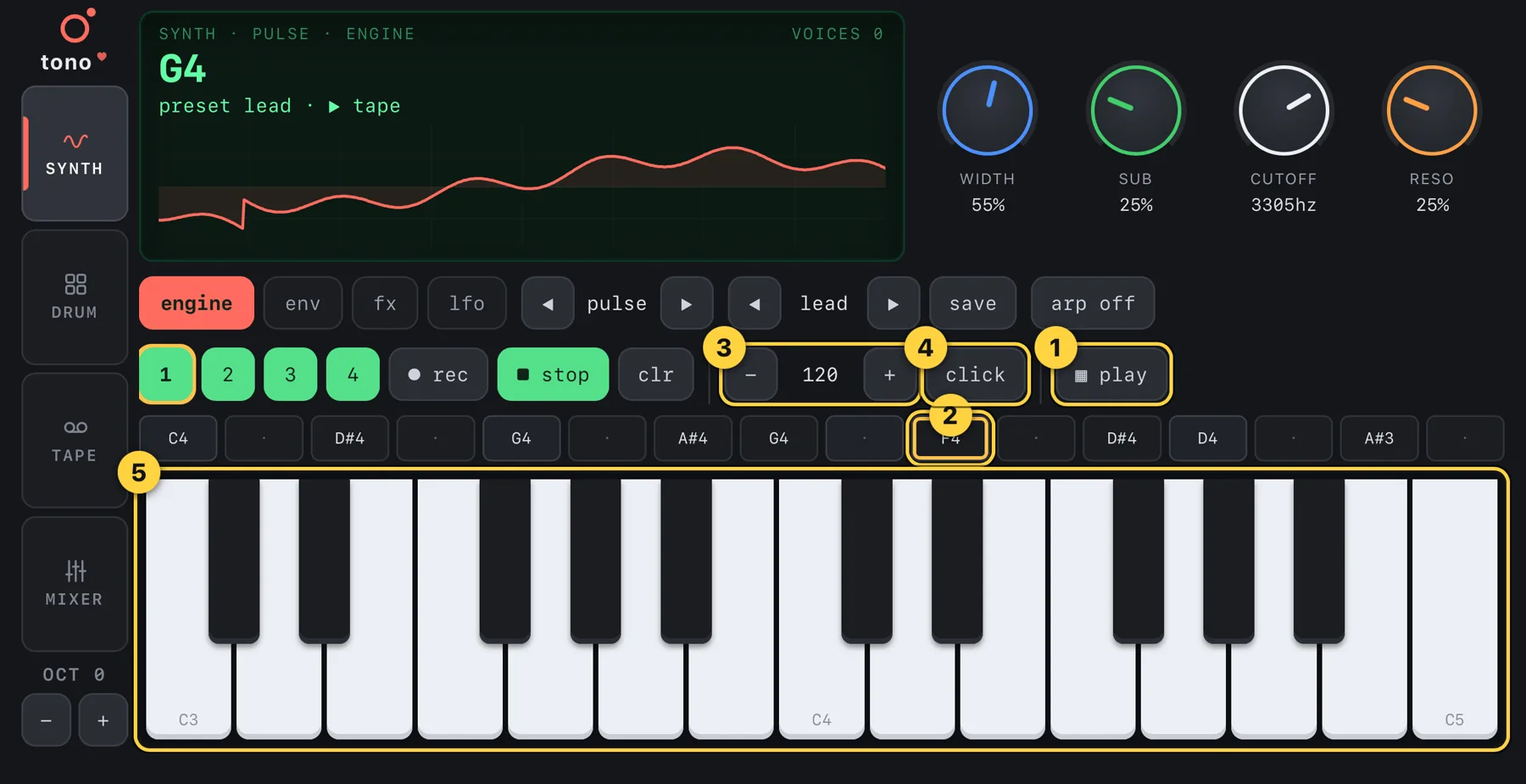
- ▦ play — starts and stops the pattern.
- Steps — tap a step: a yellow frame marks it. Then play a key — the note is written into the step and the frame moves to the next one. Fill the pattern by playing the notes in order. To clear a step, tap it again while it is framed. A dot (·) means an empty step.
- Tempo — − and + change it by 5 BPM (40 to 240).
- click — metronome. It is only heard by you and is never recorded.
- Keyboard — plays notes and writes them to the framed step.
Arpeggiator
On the Synth screen the button arp cycles off → up → down → updown → random. With the arpeggiator on, hold two or more keys and tono plays them one after another in time with the tempo. Lift your fingers to stop.
Loop tape
The tape records what you play into a loop and lets you add layers on top. It has four stereo tracks.
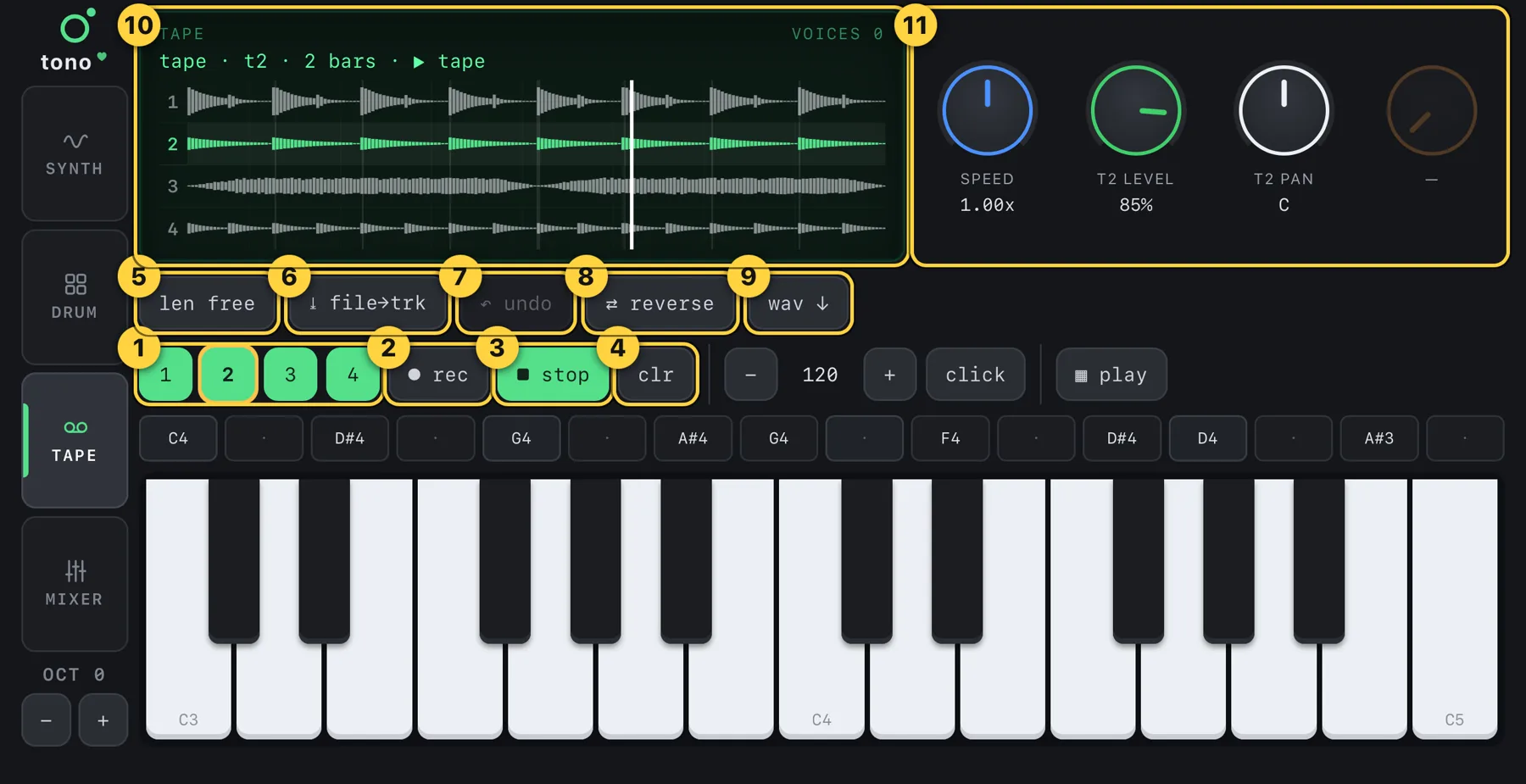
- Tracks 1–4 — pick the track to record on (it gets a yellow ring). A green track already contains sound.
- ● rec — record onto the chosen track.
- ▶ play / ■ stop — play or stop the loop.
- clr — clear the chosen track.
- len — loop length: free or 1 / 2 / 4 / 8 bars. It applies to a new, empty tape.
- ↓ file→trk — load an audio file onto the chosen track.
- ↶ undo — undo the last action (five steps back).
- ⇄ reverse — play the loop backwards.
- wav ↓ — export the mix, see Mixer.
- Screen — the four tracks with a moving playhead.
- Knobs — speed (half to double, pitch changes like on a real tape), the level and the pan of the chosen track.
Record your first loop
- Set the length with len. With 4 bars and tempo 120 you get an 8-second loop; with free you decide when to stop.
- Choose track 1 and tap ● rec.
- With a set length and nothing playing, tono first plays one empty bar with a metronome click as a count-in, then records exactly the chosen number of bars. If the sequencer or arpeggiator is already playing, recording starts at the next bar. With free length, recording starts at once — tap ● rec again to stop.
- Play the keys (or the pads in Drum mode). The loop starts playing when recording ends.
Add layers (overdub)
Choose another track, tap ● rec and play along: tono records exactly one pass of the loop and stops. Repeat on tracks 2, 3, 4. Record again on a track that already has sound and the new part is added to it. A mistake? ↶ undo.
To start from scratch, tap clr on every track — the tape becomes empty and the length can be set again.
Mixer and export
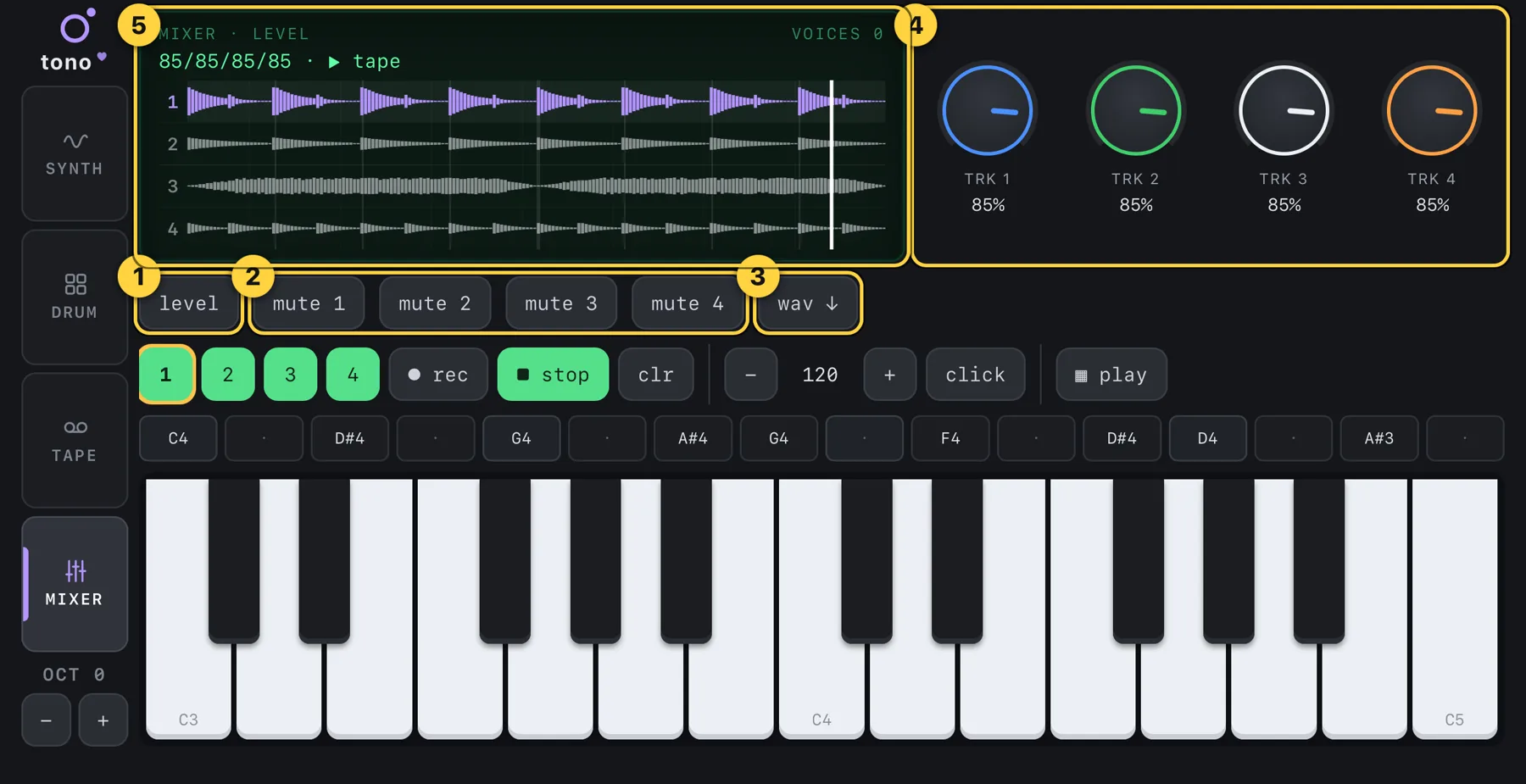
- level / pan — switches what the four knobs control: level (volume) or pan (left-right) of tracks 1–4.
- mute 1–4 — silences a track without erasing it. Tap again to bring it back.
- wav ↓ — mixes the four tracks with their levels, pans and mutes into one WAV file and opens the iOS share sheet: save to Files, send by AirDrop or message, or open in another app.
- Knobs — per-track volume or pan.
- Screen — the tracks; the selected one is highlighted.
Saving
- tono saves automatically: knob positions, the sequencer pattern, tempo, the tape (all four tracks), your samples and drum-pad sounds. Close the app and come back — everything is where you left it.
- Your own presets are saved with save on the Synth screen.
- Everything is kept only on your device; tono has no account and sends nothing anywhere. It may be included in your iCloud or computer backup.
- To keep a loop outside tono, export a WAV (Mixer).
Troubleshooting
- No sound. Turn the volume up, end any phone call, close tono and open it again.
- The microphone does not record. Allow access: Settings → Privacy & Security → Microphone → tono.
- Sound is delayed. Wired or Lightning/USB-C headphones have the lowest latency; Bluetooth headphones always add a delay.
- A button is missing on a small phone. The row scrolls — swipe it sideways.
- The app moves to another app when I swipe from the edge. tono asks for a second swipe on purpose, so a stray swipe does not interrupt the music.
Still stuck? Write to support@codewright.cc and mention your device and iOS version.
tono — Руководство пользователя
Карманный синтезатор, сэмплер и лента с лупами для iPhone и iPad. Всё работает без интернета.
- Начало
- Синтезатор
- Эффекты, огибающая, LFO
- Сэмплер
- Барабаны
- Секвенсор и арпеджиатор
- Лента с лупами
- Микшер и экспорт
- Сохранение
- Если что-то не так
Начало
Откройте tono и играйте: клавиши внизу звучат сразу. Поверните iPhone горизонтально (на iPad подходит любое положение). Звук идёт и при включённом беззвучном режиме.
В tono четыре режима, они слева: Synth (синтезатор), Drum (барабаны), Tape (лента) и Mixer (микшер). У каждого свои ручки и кнопки, а клавиатура, управление лентой и секвенсор всегда внизу.
- Режимы — Synth, Drum, Tape, Mixer.
- Экран — сыгранная нота, состояние и волна в реальном времени. В режимах Tape и Mixer показывает четыре дорожки.
- Четыре ручки — положите палец на ручку и ведите вверх или вниз. Значение видно под ручкой и на экране. Что делают ручки, зависит от режима и от страницы ④.
- Страницы — engine (движок), env (огибающая), fx (эффекты), lfo.
- Engine — генератор звука. Переключается стрелками ◀ ▶.
- Preset — готовые звуки. ◀ ▶ переключают, save сохраняет ваш.
- Арпеджиатор — по нажатию: off / up / down / updown / random.
- Лента и темп — дорожки 1–4, запись, воспроизведение, очистка, темп, метроном, секвенсор.
- Секвенсор — 16 шагов.
- Клавиатура — две октавы (от C3 до C5). Проведите пальцем по клавишам — получится глиссандо.
- Октава — сдвигает клавиатуру вверх и вниз, максимум на две октавы.
- Логотип tono — нажмите, чтобы увидеть версию приложения и ссылки на поддержку и конфиденциальность.
Если на маленьком экране ряд кнопок не помещается, его край затухает — проведите по ряду пальцем в сторону, чтобы увидеть остальные.
Синтезатор
Выберите один из девяти движков стрелками ◀ ▶ (⑤). У каждого свои четыре ручки на странице engine:
- digital — shape, cutoff, reso, spread: классический генератор с фильтром.
- fm — ratio, index, cutoff, spread: колокольчики, электропиано, металл.
- pulse — width, sub, cutoff, reso: плотные соло и басы.
- string — damp, decay, cutoff, bright: щипковые струны.
- cluster — mix, spread, cutoff, bright: органные стопки голосов.
- phase — amount, color, cutoff, spread: стеклянные, меняющиеся тембры.
- voltage — spread, sub, cutoff, reso: аналоговые пилы.
- dna — morph, ratio, cutoff, spread: кольцевая модуляция, необычные тембры.
- sampler — играет ваши записи, см. раздел «Сэмплер».
Preset (⑥) сразу задаёт движок и все ручки: keys, ep, lead, pluck, organ, bell, saw, ring, sampler. Потом можно крутить любую ручку — пресет лишь отправная точка. Кнопка save спросит имя и сохранит вашу версию; свои звуки идут после встроенных.
Можно держать несколько клавиш одновременно — число звучащих голосов видно справа вверху экрана.
Эффекты, огибающая и LFO
- Страницы — переключение между engine, env, fx и lfo. Цвет экрана и акцентов меняется вместе со страницей.
- Эффект — на странице fx выберите один из шести: delay (эхо), reverb (реверберация), drive (перегруз), crush (биткрашер), chorus, phone («телефон»).
- Ручки — у каждого эффекта первая ручка mix. При mix 0% эффект выключен, прибавьте, чтобы услышать его.
Огибающая (env)
Определяет, как нота начинается и заканчивается: attack — время нарастания, decay — как быстро звук падает до уровня sustain, sustain — уровень, пока клавиша зажата, release — затухание после отпускания. Короткие attack и decay с малым sustain — звук как щипок; длинные attack и release — как «пэд».
LFO
Медленная волна, которая со временем что-то двигает. rate — скорость, depth — сила, dest — что двигать: off, vibrato (высота), tremolo (громкость), wah (фильтр) или pan (лево–право). shape — форма волны. При depth ноль LFO не слышно.
Сэмплер
Запишите любой звук и играйте им на клавиатуре. Переключите движок на sampler — появится ряд кнопок сэмплера (проведите по ряду, если видны не все).
- ◉ mic — нажмите, чтобы начать запись с микрофона, нажмите ещё раз — остановить (до 20 секунд). Тишина по краям обрезается, громкость выравнивается сама. В первый раз iOS спросит разрешение на микрофон.
- ◉ resample — записывает в сэмплер всё, что звучит внутри tono (инструмент и лента). Нажали — пишет, нажали — стоп.
- ↓ file — загрузить аудиофайл (WAV, MP3 или M4A) из «Файлов».
- loop — зацикливает сэмпл, пока зажата клавиша. Хорошо для тянущихся звуков.
- Волна — текущий сэмпл с маркерами начала и конца.
- Ручки — start и end обрезают сэмпл, tune сдвигает высоту до ±12 полутонов, cutoff — фильтр низких частот.
Нота C4 играет сэмпл с исходной высотой, остальные клавиши — выше или ниже. Огибающая, эффекты и арпеджиатор работают с сэмплом так же, как с любым движком.
Барабаны
Выберите Drum слева. Клавиатура превращается в 13 барабанных пэдов с подписями на клавишах: kick, snar, hh c / hh o (закрытый / открытый хай-хэт), clap, tm l / tm h (низкий / высокий том), rim, cowb, cymb, clav, shkr, perc. После 13-й клавиши набор повторяется.
- Пэды — нажмите клавишу, чтобы сыграть и выбрать этот пэд. Его имя появится на экране.
- Ручки — pitch, decay, tone, level выбранного пэда. Каждый пэд помнит свои настройки.
- ◉ mic→pad — записывает ваш звук с микрофона в выбранный пэд (до 10 секунд). Нажали — пишет, нажали — стоп.
- ↓ file→pad — кладёт аудиофайл в выбранный пэд.
- Секвенсор — в режиме Drum шаги хранят пэды (kck, snr, hhc…), см. ниже.
У пэда с вашим звуком появляется кнопка ✕ synth — она возвращает встроенный барабанный звук.
Секвенсор и арпеджиатор
Секвенсор на 16 шагов проигрывает паттерн по кругу. Он работает в любом режиме: с нотами в Synth, с пэдами в Drum.
- ▦ play — запуск и остановка паттерна.
- Шаги — нажмите шаг: он выделится жёлтой рамкой. Затем сыграйте клавишу — нота запишется в шаг, а рамка перейдёт на следующий. Так паттерн заполняется нотами по порядку. Чтобы очистить шаг, нажмите на него ещё раз, пока он в рамке. Точка (·) — пустой шаг.
- Темп — − и + меняют его на 5 BPM (от 40 до 240).
- click — метроном. Слышите только вы, в записи его нет.
- Клавиатура — играет ноты и пишет их в шаг в рамке.
Арпеджиатор
На экране Synth кнопка arp переключает off → up → down → updown → random. С включённым арпеджиатором зажмите две и больше клавиш — tono сыграет их по очереди в такт темпу. Отпустите пальцы, чтобы остановить.
Лента с лупами
Лента записывает то, что вы играете, в петлю и позволяет накладывать слои. В ней четыре стереодорожки.
- Дорожки 1–4 — выберите дорожку для записи (у неё жёлтое кольцо). Зелёная дорожка — на ней уже есть звук.
- ● rec — запись на выбранную дорожку.
- ▶ play / ■ stop — запуск и остановка петли.
- clr — очистить выбранную дорожку.
- len — длина петли: free (свободная) или 1 / 2 / 4 / 8 тактов. Действует для новой, пустой ленты.
- ↓ file→trk — загрузить аудиофайл на выбранную дорожку.
- ↶ undo — отменить последнее действие (до пяти шагов назад).
- ⇄ reverse — играть петлю задом наперёд.
- wav ↓ — экспорт микса, см. «Микшер».
- Экран — четыре дорожки с бегущей кареткой.
- Ручки — speed (от половины до двойной скорости, высота меняется, как на настоящей ленте), level и pan выбранной дорожки.
Запишите первую петлю
- Задайте длину кнопкой len. При 4 тактах и темпе 120 получится петля в 8 секунд; при free вы сами решаете, когда остановить.
- Выберите дорожку 1 и нажмите ● rec.
- При заданной длине и пока ничего не играет, tono сначала проиграет один пустой такт с щелчками метронома (отсчёт), а затем запишет ровно выбранное число тактов. Если секвенсор или арпеджиатор уже играют, запись начнётся со следующего такта. При длине free запись начинается сразу — чтобы остановить, нажмите ● rec ещё раз.
- Играйте на клавишах (или на пэдах в режиме Drum). Когда запись закончится, петля сама заиграет.
Накладывайте слои (оверддаб)
Выберите другую дорожку, нажмите ● rec и играйте поверх: tono запишет ровно один круг петли и остановится. Повторите на дорожках 2, 3, 4. Если записать ещё раз на дорожку со звуком, новая партия добавится к старой. Ошиблись? ↶ undo.
Чтобы начать с нуля, нажмите clr на каждой дорожке — лента станет пустой, и длину можно задать заново.
Микшер и экспорт
- level / pan — переключает, чем управляют четыре ручки: level (громкость) или pan (лево–право) дорожек 1–4.
- mute 1–4 — заглушает дорожку, не стирая её. Нажмите ещё раз, чтобы вернуть.
- wav ↓ — сводит четыре дорожки с их громкостью, панорамой и mute в один WAV-файл и открывает меню «Поделиться» iOS: сохранить в «Файлы», отправить по AirDrop или в сообщении, открыть в другом приложении.
- Ручки — громкость или панорама дорожек.
- Экран — дорожки; выбранная подсвечена.
Сохранение
- tono сохраняет всё сам: положения ручек, паттерн секвенсора, темп, ленту (все четыре дорожки), ваши сэмплы и звуки пэдов. Закройте приложение и вернитесь — всё на месте.
- Свои пресеты сохраняются кнопкой save на экране Synth.
- Всё хранится только на вашем устройстве: в tono нет аккаунта, и оно ничего никуда не отправляет. Данные могут попадать в резервную копию iCloud или компьютера.
- Чтобы сохранить луп за пределами tono, экспортируйте WAV («Микшер»).
Если что-то не так
- Нет звука. Прибавьте громкость, завершите телефонный звонок, закройте tono и откройте снова.
- Микрофон не пишет. Разрешите доступ: Настройки → Конфиденциальность и безопасность → Микрофон → tono.
- Звук запаздывает. Минимальная задержка — с проводными наушниками (Lightning/USB-C); Bluetooth-наушники всегда добавляют задержку.
- На маленьком телефоне не видно кнопки. Ряд прокручивается — проведите по нему пальцем в сторону.
- Свайп от края экрана не выходит из приложения. tono нарочно просит второй свайп, чтобы случайное движение не прервало музыку.
Не нашли ответ? Напишите на support@codewright.cc и укажите модель устройства и версию iOS.